Apps and art: what app designers can borrow from creative coders
Creative coding frameworks, museum and gallery apps, AR artworks and generative visuals, plus the working habits app designers can borrow from artists.
Updated 15 Oct 2026
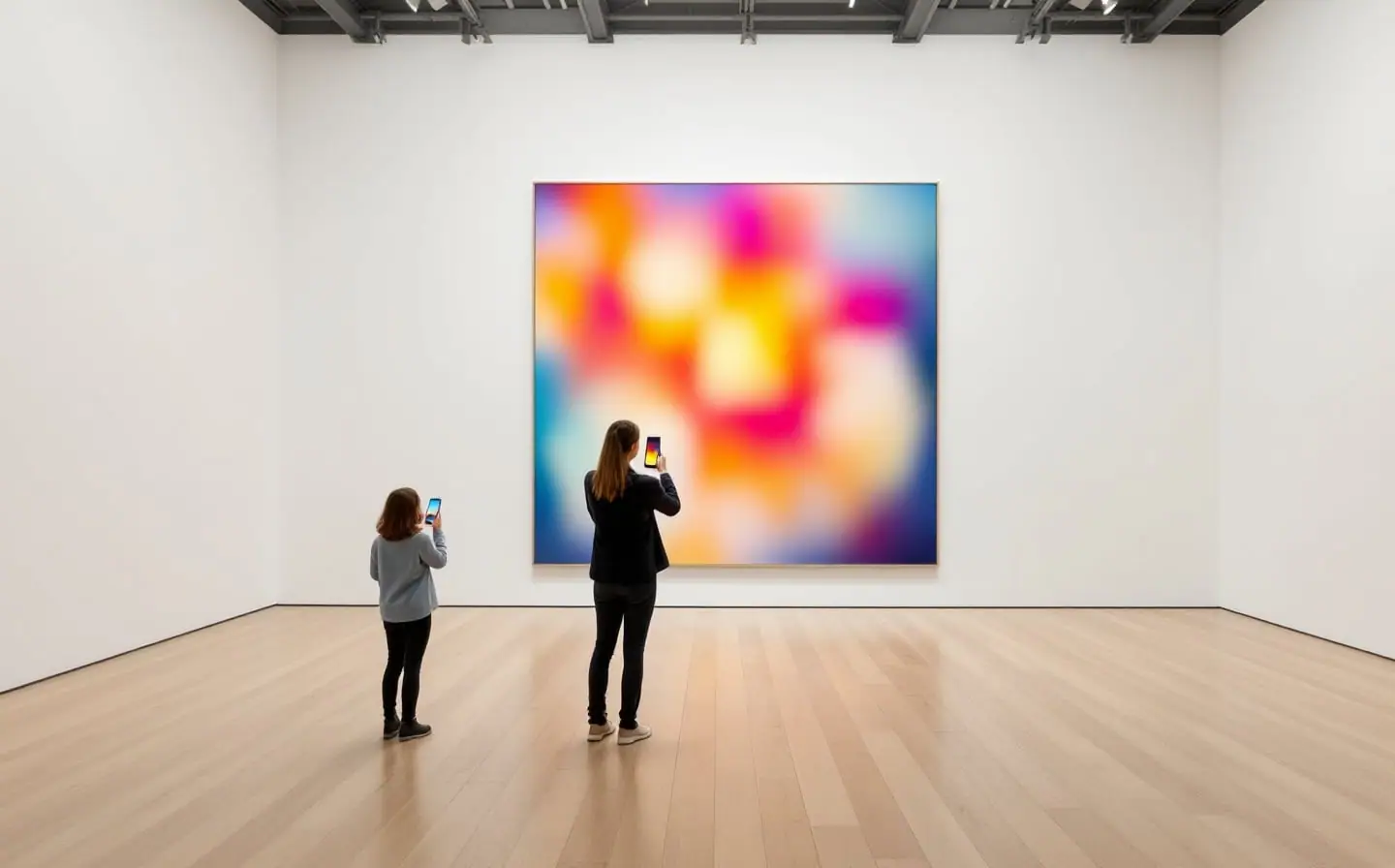
Artists who work with code tend to treat software as a material: something to push, sample and repeat until it shows a quality nobody planned. App teams usually treat software as a way to deliver features. Both views are useful, and the places where they meet are worth a closer look. There are creative coding tools that run on phones, apps that guide people through museums, artworks placed in streets through augmented reality, and generative visuals inside otherwise ordinary products.
This guide covers each of those meeting points with the technical facts an app team needs, then ends with habits designers can take from artists without turning a banking app into an installation.
Creative coding tools, from sketchbook to app
Processing started in 2001, created by Casey Reas and Ben Fry, who had both worked in the Aesthetics and Computation Group at the MIT Media Lab. It made sketching with code approachable for designers, and it now comes in several flavors, Processing for Android among them. p5.js brought the same ideas to JavaScript; Lauren Lee McCarthy created it and led the project from 2013 to 2020, and the Processing Foundation supports it. openFrameworks is an open-source C++ toolkit that supports iOS and Android alongside desktop systems.
You don't need any of them to make art on a phone. Both platforms ship native drawing and shader tools that handle most generative work.
| Tool | Language | Where it runs | Good for |
|---|---|---|---|
| p5.js | JavaScript | Browsers, web views | Quick sketches you can share as a link |
| Processing | Java, plus other modes | Desktop, Android | Learning, studies, installations |
| openFrameworks | C++ | Desktop, iOS, Android | Heavy pieces, sensors, camera input |
| SwiftUI Canvas and TimelineView | Swift | iOS 15 and later | Animated 2D drawing inside a normal app |
| SwiftUI shader effects | Metal Shading Language | iOS 17 and later | Per-pixel color and distortion on any view |
| AGSL with RuntimeShader | AGSL, close to GLSL | Android 13 (API 33) and later | Per-pixel effects in Views and Compose |
SwiftUI's three shader modifiers, colorEffect, distortionEffect and layerEffect, run Metal functions over a view. On Android, the Android Graphics Shading Language defines RuntimeShader objects and shares much of its syntax with GLSL fragment shaders, so a lot of shader code from the art community moves across with modest changes.
Museum and gallery apps
A museum app competes with the building it sits in. Visitors are standing, often holding a coat or a child's hand, and their attention belongs to the room. The apps that work respect that. They offer an audio guide that keeps playing with the screen locked, let people download content at home before the visit, find works by room or by the number on the wall label, and then get out of the way.
The common mistakes are just as consistent: an account before the first stop, reliance on gallery Wi-Fi that gives up on a busy afternoon, and long text set in light gray over photographs. Plan for several languages from the start, because museum audiences are international, and for visitors who use VoiceOver or TalkBack. Our guide to apps for tourism, museums and walking routes goes deeper into offline maps, location triggers and audio.
Images are the other question, since many works are still in copyright. Some institutions have opened their collections. The Rijksmuseum in Amsterdam waives copyright and database rights on its open data under the Creative Commons Zero statement, and most images in its Collection Online can be downloaded in high resolution for personal and commercial use. The museum asks, as good practice, that you name the original maker and mention the museum as the source.
Augmented reality artworks in public space
AR lets an artwork stand on a square or a rooftop without anyone pouring concrete. Two platform features make location-based pieces possible. On iOS, ARKit's geotracking configuration places location anchors at a latitude, longitude and optional altitude. It needs a device with an A12 chip or later and GPS, works outdoors only, and is available in specific areas that your app must check at runtime. On Android, ARCore's Geospatial API attaches content to places covered by Google Street View, using a positioning model built from Street View imagery, with anchors placed relative to the WGS84 ellipsoid, the terrain or a rooftop.
Most of the design work sits around the technology. People walk while looking through a phone, so place pieces away from traffic and show visitors where to stand. Ask for camera and location access at the moment you need it, with one sentence explaining why. AR drains batteries and warms phones, so keep sessions short and offer a version without AR, such as a video or still of the work, for anyone whose phone or situation doesn't allow it.
Generative visuals inside everyday apps
Generative art doesn't have to be a separate product. A weather app can shift its background with the conditions, a meditation app can draw a slow pattern that never repeats exactly, and a reading app can give every saved article its own small abstract cover. Three rules keep these features from becoming a support burden.
First, seed your randomness. A generator driven by a stored seed draws the same image every time, which makes screenshots reproducible and lets the visuals take part in snapshot tests. Second, respect motion settings. Read Reduce Motion on iOS and the animation settings on Android, and follow WCAG: moving content that starts on its own and lasts more than five seconds needs a way to pause it, and nothing should flash more than three times in any one second. Third, budget the GPU. Stop drawing when the view is off screen, slow the frame rate when nothing changes, and test on a modest phone rather than your own.
Habits worth borrowing from artists
- Work in series. Artists make twenty versions of an idea and keep three. Do the same for an empty state or an icon before choosing one.
- Change one parameter at a time. A study that varies only spacing, or only color temperature, teaches more than a full redesign.
- Sketch in code early. A rough p5.js sketch of a transition answers timing questions faster than a written spec.
- Choose a constraint on purpose: two colors, one typeface, a single gesture. Limits push an idea toward clarity.
- Keep the process visible. Pin rejected versions beside the chosen one so the team can see why it won.
- Let time and place matter. Light, season and location can change what a screen shows, as long as the change is gentle and predictable.
When a generative element proves itself, give it a name, tokens and an owner in your design system, like any other component.
Questions
Do we need a creative coding framework to add generative visuals to an app?
Usually not. SwiftUI Canvas, SwiftUI shader effects and AGSL on Android cover most generative work inside a native app. A framework such as p5.js is still handy for sketching an idea quickly before you rebuild it natively.
Can we use photographs of paintings in a commercial app?
Check the license for every image. Open collections such as the Rijksmuseum's offer many public domain works under CC0. For works still in copyright you need permission from the rights holder, which may be the artist or their estate rather than the museum.
How precise are location anchors for AR artworks?
Google describes its Geospatial positioning as far more precise than GPS alone, and Apple's geotracking combines GPS with map data and the compass. Coverage is the catch. Confirm availability at the exact site before you promise a location, then visit with several phones at different times of day.
Should generative visuals be switched off for accessibility?
Not necessarily. Keep them, but make motion optional, follow the system settings, keep text contrast independent of the changing background, and avoid flashing entirely.
More on app design
Design systems for small app teams: start smaller than you think
How a small app team can build a design system that lasts: tokens first, a dozen components, notes in the design file, clear names and a first month plan.
App store screenshots that explain the app in five seconds
How to plan app store screenshots that work at search size: what the first three must show, how to write captions, and how to handle languages and dark mode.
Mobile app accessibility: a working checklist for small teams
A release by release accessibility checklist for small mobile teams: screen readers, text scaling, touch targets, contrast, icon labels and motion settings.