Android for beginners: a four-weekend plan with Kotlin and Compose
A four-weekend plan to learn Android with Kotlin and Jetpack Compose: Android Studio setup, a first app, emulator or phone, and where beginners get stuck.

Updated 15 Oct 2026
Weekends are a good unit for learning Android. One evening is too short: the first Gradle build alone can eat half of it. A whole week of evenings tends to fall apart by Wednesday. Four weekends, with five or six focused hours each, is enough to go from nothing to a small app running on your own phone, as long as you keep the scope honest.
This plan assumes no Android experience. Some programming background helps, but Google's free Android Basics with Compose course lists only basic computer and math skills as prerequisites, and this plan borrows its order. The language is Kotlin, the UI toolkit is Jetpack Compose, and the tool is Android Studio. That is the stack Google recommends for new apps, and nearly every current tutorial uses it.
Contains affiliate links. As an Amazon Associate I earn from qualifying purchases.
Before the first weekend
Do the installation on a weekday evening, because it is mostly waiting. Android Studio's install page lists 8 GB of RAM as the minimum for the IDE alone and 16 GB once you add the emulator, with at least 16 GB of free disk space for both and more on a solid state drive recommended. On a machine with 8 GB, plan to test on a real phone rather than the emulator.
Download Android Studio from the official Android developers site, run it, and let the setup wizard install the SDK components it proposes. Accept the defaults. Then create one project from the Empty Activity template, which is the Compose starter, and press Run once so the first, slowest build is behind you before Saturday.
If the emulator refuses to start on a Windows or Linux machine, the usual cause is hardware virtualization switched off in the computer's firmware settings. The emulator documentation has a page on hardware acceleration that walks through it.
The plan at a glance
| Weekend | Goal | You can say you're done when |
|---|---|---|
| 1 | Kotlin on its own | You can write a small program with a data class, a list and a when |
| 2 | A first Compose screen | A button changes text on screen, and survives rotation |
| 3 | Emulator, phone, lists | A scrolling list runs on your own phone |
| 4 | State, storage, a second screen | The app remembers data after you close it |
Weekend 1: Kotlin before Android
Resist opening Android Studio. The Kotlin tour runs entirely in the browser, with no installation, and teaches the parts of the language you will meet on day one of Android work: val and var, null safety with ?, ?. and ?:, functions and lambdas, data classes, collections with map and filter, and when.
Spend Sunday writing one small program from scratch, such as a tip splitter or a habit tracker that prints a weekly summary. Learning Kotlin and Android at the same time is the most common reason beginners stall, because every error message could come from either.
Weekend 2: a first Compose screen
Open the project you created during setup. Look at three things: MainActivity, the setContent block, and the functions marked @Composable. Click Split in the top right of the editor, and the @Preview function renders next to your code.
Replace the generated greeting with a counter. It is a tiny screen, but it teaches the idea that confuses nearly everyone at first: Compose redraws a function when the state it reads changes, and only state it knows about.
@Composable
fun Counter(modifier: Modifier = Modifier) {
    var count by rememberSaveable { mutableIntStateOf(0) }
    Column(modifier.padding(24.dp)) {
        Text("Tapped $count times")
        Button(onClick = { count++ }) {
            Text("Tap")
        }
    }
}
Write it first with a plain var count = 0 and watch the number refuse to move. Then add remember with mutableIntStateOf and it works, until you rotate the device and it resets. rememberSaveable survives the rotation. Those three versions teach more about Compose than a day of reading.
Weekend 3: emulator, phone and a list
Use both, for different jobs.
| Emulator | Your own phone | |
|---|---|---|
| Setup | A virtual device from Device Manager | Developer options and USB debugging |
| Good for | Trying other screen sizes and Android versions | Touch, keyboard, real speed |
| Weak at | Feel of a thumb, real performance | Testing versions you do not own |
| Needs | 16 GB of RAM to run comfortably | A cable that carries data, not only power |
To use a phone, open Settings, find Build number (under About phone on most models), and tap it seven times until the phone says you are now a developer. Developer options then appear in the system settings, and USB debugging lives inside it. When the phone asks whether to allow USB debugging from your computer, allow it. Later you can drop the cable and use wireless debugging, which the guide to building a small Android test device lab covers along with choosing extra test phones.
The building task for this weekend is a list. Make a data class for the items, a hardcoded list of twenty of them, and a LazyColumn that shows them. Then tap an item to mark it done. You will run into state again, this time in a list, and the fix is the same idea from weekend 2.
Weekend 4: state that survives, and a second screen
Move the list state out of the composable into a ViewModel, so the screen only displays what it is given and sends events back up. The Compose documentation calls this state hoisting, and it is the habit that makes the next app easier to change.
Then make the data survive a restart. DataStore is enough for a few settings; Room is the right tool for a real list of records. The Android Basics course has a full unit on both. Finish with a second screen, such as an edit screen for one item, using Navigation for Compose.
On Sunday evening, install the app on your phone and use it for a week. The bugs you find in your own pocket are the ones worth fixing first.
Where beginners get stuck, and how to get stuck less
- Read the first error in the Build window, not the last. Gradle prints a long chain, and the cause is usually near the top.
- Postpone upgrade prompts. When Android Studio offers to update the Android Gradle plugin or a library mid-weekend, finish the weekend first.
- Watch your imports. Compose has
TextandButtonin both the older Material package and Material 3. Pickandroidx.compose.material3and stay with it. - Check the date and toolkit of every tutorial. Many search results still show XML layouts and
findViewById. They are not wrong, just a different toolkit from the one you are learning. - Filter Logcat to your own app with
package:mine, or your log lines drown in system noise. - Keep a notes file of every error you solved and how. By weekend four it is the most useful document you own.
If you want company while practicing, a coding dojo is a friendly place to try Kotlin in front of others, in small steps, with tests.
Questions
Do I need to learn Java first?
No. Kotlin is the language Google recommends for Android, and new projects, samples and courses use it. You will read some Java in older answers online, and Kotlin makes that easy later, since the two work together in one project.
Can I learn on a Mac, a Windows PC or a Chromebook?
Android Studio runs on Windows, macOS, Linux and ChromeOS. The limit is usually memory, not the operating system. On a lighter machine, test on a phone and keep the emulator closed.
Should I learn Compose or the older View system?
Compose. It is the toolkit for new Android UI, and the official course teaches it. Views still exist in many established apps, and the last unit of Android Basics with Compose shows how the two work side by side, which is enough for a first job.
Do I need a developer account to run the app on my phone?
No. Debug builds install over USB or wireless debugging without any account. A Google Play developer account matters only when you want to publish, and registering as an app developer explains the steps.
What should the second app be?
Something you would use every week, with one screen of data that you can't get elsewhere. Once both feel comfortable, the guide to choosing a cross-platform framework helps you decide whether iOS comes next through Kotlin Multiplatform, another framework or native Swift.
More on mobile development
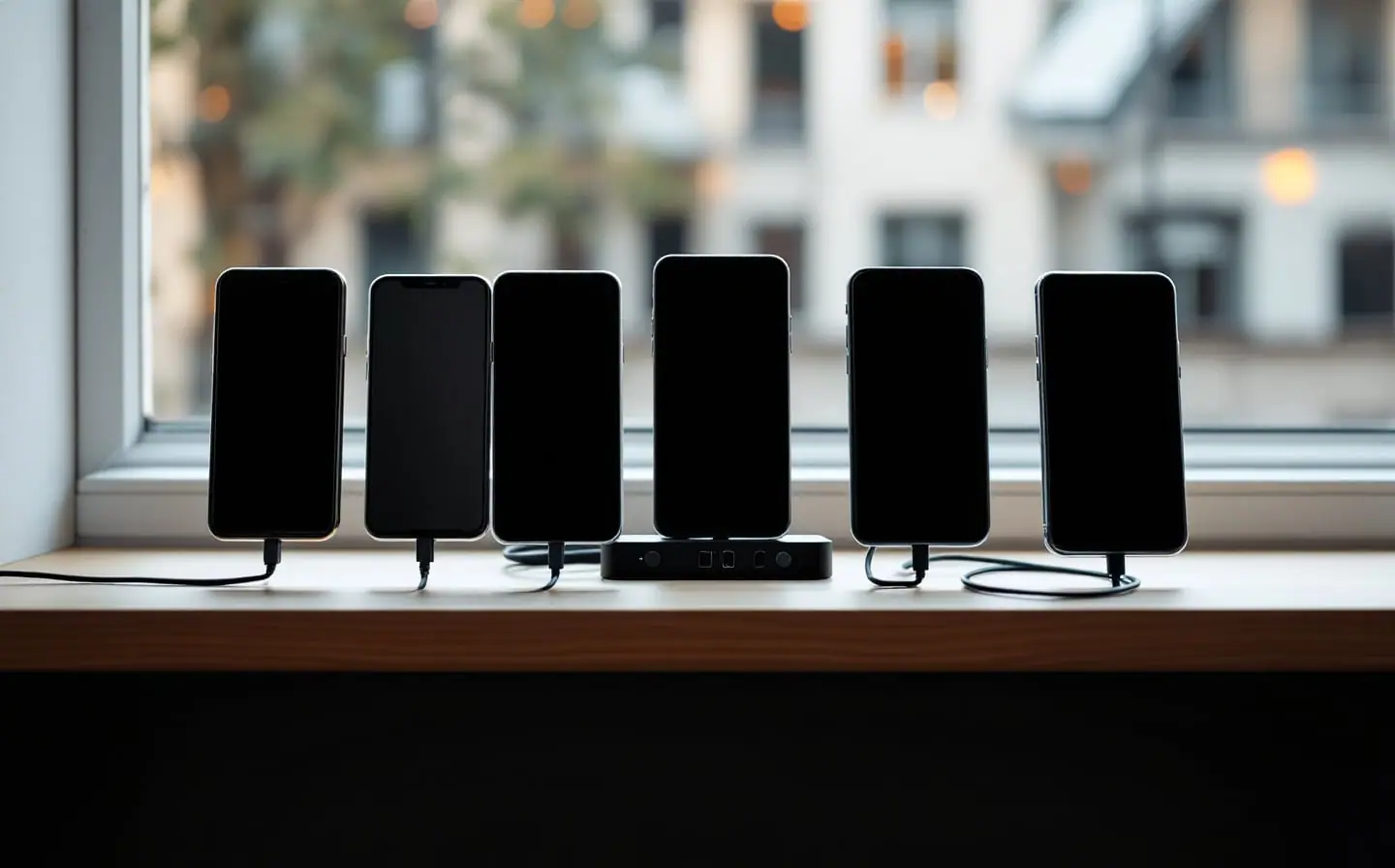
A powered USB hub for test phones: power, ports and switches
How to choose a powered USB hub for test phones: why bus-powered hubs drop devices, what to read on the spec sheet, and why a switch on every port helps.

Building a small Android test device lab on a budget
How to pick Android test phones by role, buy them refurbished, keep them charged and connected over Wi-Fi, and decide which to update and which to freeze.

Snapshot testing for iOS and Android: a field guide
How snapshot tests work on iOS and Android, which libraries to use, how to record and verify, where flaky diffs come from and what is not worth snapshotting.