USB-C hub for MacBook: what to check before you buy, and picks
What to check in a USB-C hub for a MacBook: pass-through power, how many screens macOS will extend, USB-A for test phones, card readers, Ethernet and heat.
 Ruben Mertens · · 8 min read
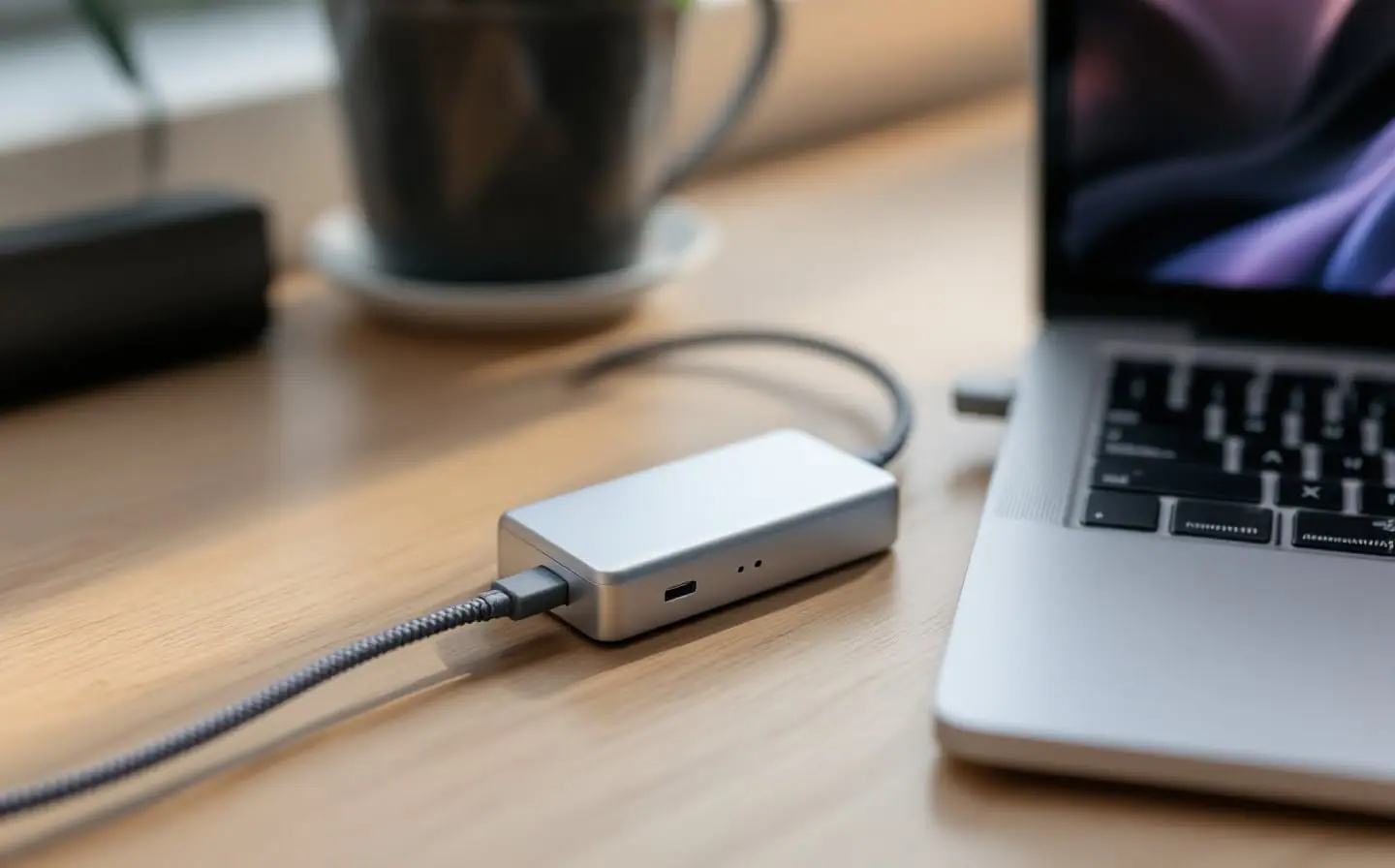
My MacBook Air has two USB-C ports and a MagSafe connector, and a normal working day asks for about eight connections: a monitor, a network cable for the days the building's Wi-Fi gives up, two test iPhones, an Android phone, a card reader and power. All of it goes through a hub. I own two, a small one for the bag and a bigger one that stays on the desk.
Contains affiliate links. As an Amazon Associate I earn from qualifying purchases. Purchases through our eBay links can earn us a commission too.
Hubs sold for MacBooks look almost identical in photos. What separates a good fit from a poor one sits in the small print, and a few of those details only apply to the Mac. This piece is about the hub itself; cables, chargers and the rest of the desk are in my earlier guide to a mobile developer's desk.
Start with your Mac's charger, not the hub
The first number to find is the wattage of the adapter Apple recommends for your laptop. Apple's power adapter page lists it per model, from 20 W for the MacBook Neo up to 140 W for the 16-inch MacBook Pro. Then read the hub's pass-through figure, which is what reaches the laptop after the hub keeps some power for its own ports. Most hubs are built for at most 100 W in, so the pass-through lands somewhat lower.
If it falls below your recommended adapter, the Mac still charges. Apple says a Mac that charges over USB-C works with any USB Power Delivery adapter or display, even one below the recommended wattage. It just charges slowly, and when the power is too low for the model, "Slow Charger" shows up in the battery menu. During a long build, that can mean a battery that drains gently all afternoon while it looks plugged in.
To see what actually arrives, hold Option, choose Apple menu > System Information, select Power and scroll to AC Charger Information. Do it with the hub in place and its charger connected.
There is an easier way around all of this if your MacBook has a MagSafe port, as current Air and Pro models do. Charge through MagSafe and let the hub carry data and video only. Pass-through stops mattering and the hub runs cooler. The Neo has no MagSafe and only two USB-C ports, so there a hub with pass-through is how you stay charged and connected at once.
Screens: the Mac sets the limit, not the hub
Every MacBook supports a fixed number of external displays, from one on some entry and older models to four on the top MacBook Pro configurations. A hub doesn't raise it. Apple's page on displays for MacBook Air puts it plainly: a supported hub or a daisy chain can carry up to two displays over one Thunderbolt port, but that doesn't increase the maximum your Mac supports. (The MacBook Pro version of the page says up to three over one port.)
So check Apple's tech specs for your model before you pay for a second HDMI port. The quickest route is on the Mac itself: open System Settings, choose Help in the menu bar, pick the Specifications entry for your Mac and scroll to Display Support.
Then comes the trap that catches most people. Many inexpensive hubs with two HDMI ports split one DisplayPort signal in two using Multi-Stream Transport (MST). Windows extends a desktop across both screens that way. On a Mac, dock makers' own support notes say MST hubs work in mirrored mode only, so both monitors show the same picture. Thunderbolt docks avoid this by sending separate display streams that macOS handles natively, up to your model's limit.
The other route is DisplayLink, a technology from Synaptics. A DisplayLink dock sends the picture over USB as data, its own chip turns that back into video, and the DisplayLink Manager app has to run on the Mac. It can drive more screens than your chip supports on its own. Synaptics' release notes list the trade-offs: some HiDPI (Retina) resolutions may be missing on Apple silicon, and protected video from some players won't show while DisplayLink screens are connected. Fine for logs and documentation; for judging your app's colors and animation, I want a real display output.
Two smaller checks. "4K HDMI" on a listing may mean 4K at 30 Hz, which makes scrolling feel sticky, so look for 60 Hz. And some hubs that offer 4K at 60 Hz over plain USB-C drop their USB ports to USB 2.0 speed while a monitor is attached; if the fine print mentions USB 2.0 next to the video spec, that's what it means. On a MacBook Neo, use the port Apple lists as USB 3 with DisplayPort; Apple lists the other one as USB 2 with charging, and no video.
The ports that matter for app work
USB-A for test phones
My older test iPhones still use Lightning, and the cables that fit them are mostly USB-A to Lightning from old boxes. Same for an Android phone kept around for an older OS version. Two USB-A ports keep those cables useful, and speed hardly matters, because running and debugging an app works fine at USB 2.0. If you look after more than three or four phones, give them a powered hub of their own, the way Michał describes in his guide to a small Android test device lab.
One Mac detail can save you an evening. On Mac laptops with Apple silicon, macOS asks before a new USB accessory may connect, and a new hub or a phone plugged into it can bring up that alert. Choose Don't Allow, or miss the alert, and the phone still charges, because Apple says accessories can charge even when they aren't allowed to connect. Xcode simply never sees it. The setting is under System Settings > Privacy & Security > Accessories, and Apple's page on allowing accessories to connect explains each option.
Data speed per port
The headline speed on a hub often belongs to one port only. Read each port's figure, and keep one fast port free for jobs that move real data: screen recordings off an iPhone that supports USB 3, or an external SSD for simulator runtimes and old project archives.
SD card reader
Check what your MacBook already has. Apple's spec pages list an SDXC card slot and an HDMI port on the 14- and 16-inch MacBook Pro, and neither on the MacBook Air or the Neo. On a Pro, a hub's card reader and HDMI port duplicate what you own. On an Air, the reader earns its place if you take in camera footage for app previews or flash cards for a single-board computer while building a companion app.
Ethernet
A gigabit Ethernet port is the one I'd miss most. Xcode updates and simulator runtimes each run to several gigabytes, and a cable is steadier than shared Wi-Fi in a coworking space. Check that the port says gigabit; older or cheaper designs may stop at 100 Mbit/s.
Heat
Hubs get warm. A small aluminum case carrying laptop power, a 4K signal and a drive has to put that heat somewhere. Warm to the touch is normal. Too hot to hold is not, and neither are devices that drop off in the afternoon and return once the hub cools. Keep it in open air, not under the laptop stand, and if your Mac has MagSafe, take the laptop's power off the hub entirely.
Travel hub, desk hub or dock
| Type | Power | Charges the Mac | External screens on a Mac | Usual ports | Suits |
|---|---|---|---|---|---|
| Travel hub | From the laptop, optional pass-through | Through pass-through, below the hub's input | One | HDMI, 2-3 USB-A, USB-C, sometimes SD | A bag, client visits |
| Desk hub | Pass-through or its own adapter | Through pass-through | One; two-HDMI models mirror | More USB-A, Ethernet, SD | One desk, one monitor, many cables |
| Thunderbolt dock | Its own power supply | Yes, from the dock | Two or more over one cable, within the Mac's limit | Thunderbolt, USB-A and USB-C, Ethernet | A fixed desk with two screens |
| DisplayLink dock | Its own power supply | Usually | Beyond the chip's limit, through the app | Video ports, USB, Ethernet | Extra screens for logs on an entry MacBook |
I keep a travel hub in the bag and a desk hub at home. A dock only makes sense the day I want a second monitor next to the first.
Two hubs to shortlist
For one monitor and a mix of old and new cables, these two cover the travel and desk ends of that table. I chose them from their published specifications and what reviewers report, not by running them on my own desk, so compare the pass-through and refresh rate on each listing with your own Mac before you order.
The seven-port one makes most sense on an Air, where the card reader fills a gap. The five-port one is the bag hub. If the pass-through falls short of your adapter, or you want the test phones off the laptop, a separate multi-port charger with a cable rated for laptop power takes that load off the hub. More desk picks are in the shop guide.
Questions
Does any USB-C hub work with a MacBook?
Almost any hub will connect and pass data. What varies is how many screens extend rather than mirror, how much power reaches the laptop and how fast each port runs. Check those three against your model.
Will a low pass-through figure hurt my Mac?
Apple says a Mac that charges over USB-C can use any USB Power Delivery source, including one below the recommended wattage. The cost is speed, plus a battery that may still drain slowly during heavy builds.
Why do both my monitors show the same picture?
Usually because the hub uses MST, which runs mirrored on a Mac. If one screen stays dark instead, you have probably reached your Mac's display limit.
Before you order
- Compare your Mac's recommended adapter wattage with the hub's pass-through, or plan to charge through MagSafe.
- Look up Display Support for your model and count the screens you actually want.
- Skip two-HDMI hubs if you want two extended screens on a Mac.
- Read the refresh rate next to "4K", and the USB speed while a monitor is attached.
- Leave out SD and HDMI if your MacBook Pro already has them.
On the day it arrives, plug in everything you normally use, allow the accessories when macOS asks, and read the charger wattage in System Information. Those five minutes tell you whether to keep the hub while you can still send it back.
Keep reading

Your first meetup talk: from the pitch to the last question
A ten-step guide to a first talk at an app meetup: picking a problem, pitching the organizer, building the outline, rehearsing, demos and handling questions.
A mobile developer's desk: hubs, cables, chargers and stands
What a mobile developer's desk needs: USB-C hubs and specs that matter, data versus charging cables, multi-port chargers, phone stands and a second screen.
Building a small Android test device lab on a budget
How to pick Android test phones by role, buy them refurbished, keep them charged and connected over Wi-Fi, and decide which to update and which to freeze.